Each page has one H1 (Heading 1 – the large title at the top).

Accessible Text
How to make accessible headings and text
Headings organize page content and signal importance to both users and search engines, making them vital for accessibility and SEO (search engine optimization).
Web Content Accessibility Guidelines (WCAG) states:
H1
H2 and H3
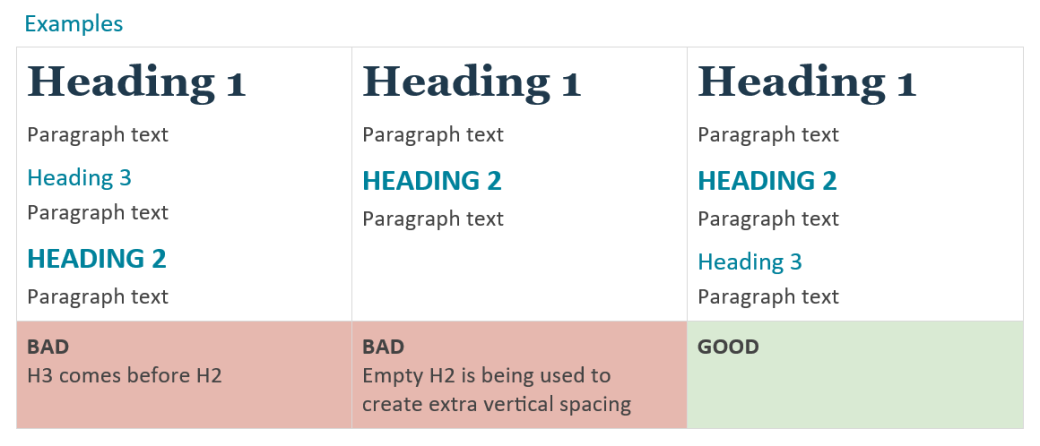
Use H2’s for main sections, H3’s for subsections, always in order (don’t skip levels or choose based on style).
No Empty Headings
Avoid accidental empty headings from extra returns—check formatting carefully.
Emphasis
Don’t use a heading for the styling/appearance alone. If you need to emphasize normal “paragraph” copy, use bold or italic instead of incorrect heading levels.
Important note about WAVE:
For faster remediation, install the WAVE browser extension to help pinpoint the exact elements causing accessibility issues.
Common heading accessibility violations:
Empty Heading
What It Means:
A heading contains no content.
Why It Matters:
Some users, especially keyboard and screen reader users, often navigate by heading elements. An empty heading will present no information and may introduce confusion.
How To Fix It:
Ensure that all headings contain informative content.
Redundant Title Text
What It Means:
Title attribute text is the same as text or alternative text.
Why It Matters:
The title attribute value is used to provide advisory information. It typically appears when the users hovers the mouse over an element. The advisory information presented should not be identical to or very similar to the element text or alternative text.
How To Fix It:
In most cases the title attribute can be removed, otherwise modify it to provide advisory, but not redundant information. Note that the title text may or may not be read by a screen reader and is typically inaccessible to sighted keyboard users.
Skipped Heading Level
What It Means:
A heading level is skipped.
Why It Matters:
Headings provide document structure and facilitate keyboard navigation by users of assistive technology. These users may be confused or experience difficulty navigating when heading levels are skipped. (Example: Heading order should follow: H1, H2, then H3).
How To Fix It:
Restructure the document headings to ensure that heading levels are not skipped. Either change this H3 to an H2, or add content above this section that contains an H2.
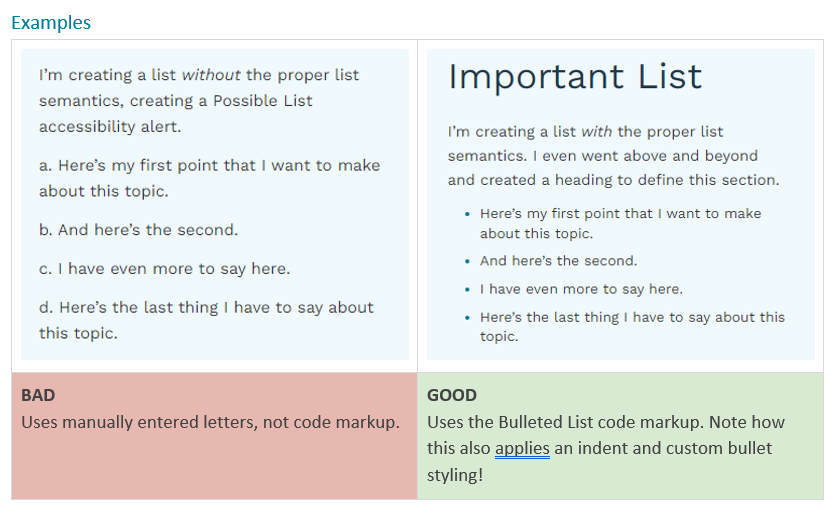
Possible List
What It Means:
Text is structured like a list but lacks proper list semantics.
Why It Matters:
Ordered and unordered lists, when properly defined, provide useful information to users, such as an indication of the list type and number of list items. When text alone is used to present list structures and content, these benefits are lost.
How To Fix It:
If list content is presented, use the bulleted list feature to semantically define the list.