

Accessible Media
How to make media accessible
Media encompasses any images, videos, or files you upload or embed on your site. Depending on the media type, there are different rules to follow.
Alternative Text
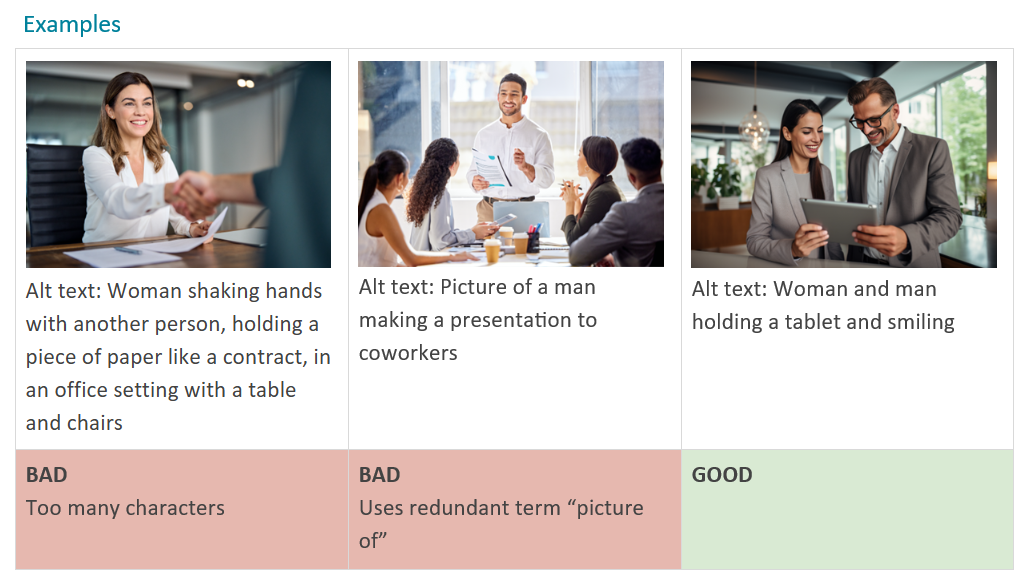
Alternative text (or “alt text”) describes an image for users with visual disabilities using screen readers, as well as search engines, and will display in place of the image if the file fails to load.
Web Content Accessibility Guidelines (WCAG) states:
- Keep it concise (under 100 characters).
- Avoid redundant phrases like “image of” or “picture of.”
- Make each image’s alt text unique—don’t reuse across multiple images.
Images Of Text
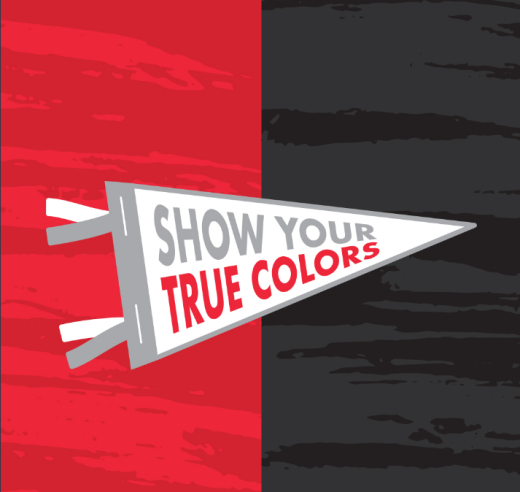
- Real website text is clearer on mobile, easier to resize, more accessible, and better for SEO than text placed inside an image.
- Avoid using images for text that people need to read. Instead, use your website’s built-in text fields and modules whenever possible.
- Because automated scans usually can’t detect text embedded in images, it’s especially important to follow this best practice during content updates.
- Acceptable exceptions include:
- logos, wordmarks, infographics, or other design elements where exact visual styling is essential.
- Decorative text within an image may also be appropriate when the surrounding page content already provides the necessary context and no meaning is lost if the image is not viewed.
- In these cases, the image’s alt text should match the visible text as closely as possible.
Audio / Video
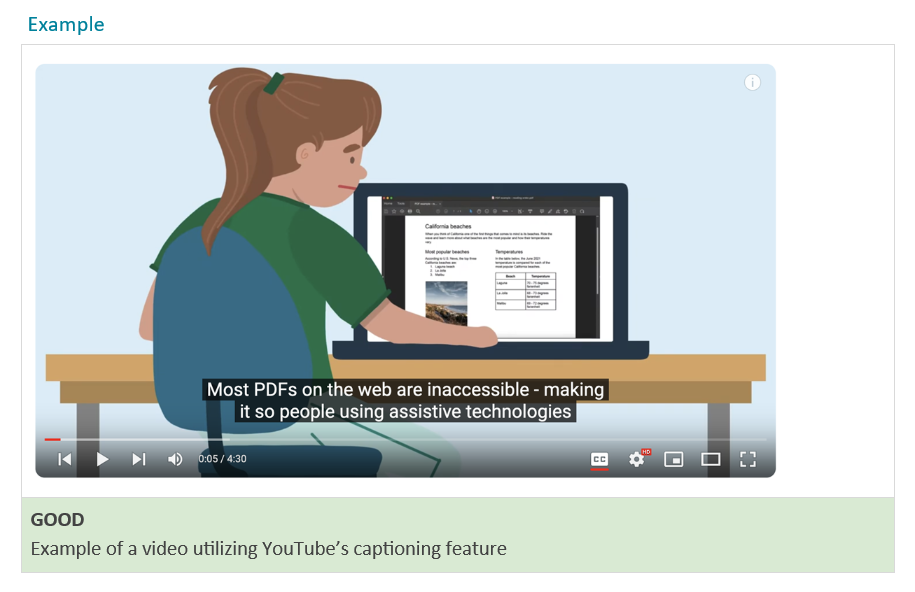
Any media with audio needs to have captions and/or a transcript to be accessible for users with auditory disabilities. This includes audio-only media (like a podcast) as well as videos that have an audio track.
Files
Accessibility standards apply to downloadable files on your website too, including PDFs, Word documents, spreadsheets, and presentations. These files need their own accessibility review process to ensure they meet standards.
In some cases, such as annual reports or complex spreadsheets, a downloadable file may still be the best format. However, whenever possible, we recommend turning that content into native website pages instead. This improves accessibility, creates a better mobile experience, supports SEO, and avoids the added time and cost of remediating files each time they are updated.
Important note about WAVE:
For faster remediation, install the WAVE browser extension to help pinpoint the exact elements causing accessibility issues.
Common media accessibility violations
Linked Image Missing Alternative Text
What It Means:
An image without alternative text results in an empty link.
Why It Matters:
Images that are the only thing within a link must have descriptive alternative text. If an image is within a link that contains no text and that image does not provide alternative text, a screen reader has no content to present to the user regarding the function of the link.
How To Fix It:
Add appropriate alternative text that presents the content of the image and/or the function of the link.
The quickest and most efficient way to fix large batches of alt text issues is to use your WordPress Media Library. Simply paginate through the images and update the alt text field directly, rather than addressing issues page by page.
Missing Alternative Text
What It Means:
Image alternative text is not present.
Why It Matters:
Each image must have an alt attribute. Without alternative text, the content of an image will not be available to screen reader users or when the image is unavailable.
How To Fix It:
Add an alt attribute to the image. The attribute value should accurately and succinctly present the content and function of the image.
The quickest and most efficient way to fix large batches of alt text issues is to use your WordPress Media Library. Simply paginate through the images and update the alt text field directly, rather than addressing issues page by page.
Suspicious Alternative Text
What It Means:
Alternative text is likely insufficient or contains extraneous information (such as “graphic of”, “image of”, “photo of”, etc).
Why It Matters:
If the alternative text for an image does not provide the same content or information conveyed by the image, that content will not be available to screen reader users and when images are unavailable.
How To Fix It:
Ensure that the alternative text for the image provides a succinct, yet equivalent alternative to the content and function of the image. Screen readers and browser presentation inform the user that the object is an image, so alternative text of “image of…” (and similar) should be avoided.
The quickest and most efficient way to fix large batches of alt text issues is to use your WordPress Media Library. Simply paginate through the images and update the alt text field directly, rather than addressing issues page by page.
Long Alternative Text
What It Means:
An image has very long alternative text.
Why It Matters:
Alternative text should be succinct, yet descriptive of the content and function of an image. Lengthy alternative text (more than around 100 characters) often indicates that extraneous content or content that is not available to sighted users is being presented.
How To Fix It:
Ensure the alternative text is succinct, yet descriptive. Ensure that no content is being presented in alternative text that is not available to sighted users viewing the image. When possible, either shorten the alternative text or provide the text alternative via another method (e.g., in text near the image, through a separate description page, etc.).
The quickest and most efficient way to fix large batches of alt text issues is to use your WordPress Media Library. Simply paginate through the images and update the alt text field directly, rather than addressing issues page by page.
A Nearby Images Has the Same Alternative Text
What It Means:
Two images near each other have the same alternative text.
Why It Matters:
When two images have the same alternative text, this often causes redundancy or indicates incorrect alternative text.
How To Fix It:
Ensure that the alternative text for each image or image button is unique and appropriate while removing unnecessary redundancy.
The quickest and most efficient way to fix large batches of alt text issues is to use your WordPress Media Library. Simply paginate through the images and update the alt text field directly, rather than addressing issues page by page.
Redundant Alternative Text
What It Means:
The alternative text for an image is the same as nearby or adjacent text.
Why It Matters:
Alternative text that is the same as nearby or adjacent text will be presented multiple times to screen readers or when images are unavailable.
How To Fix It:
Change either the alternative text or the adjacent text to eliminate the redundancy.
The quickest and most efficient way to fix large batches of alt text issues is to use your WordPress Media Library. Simply paginate through the images and update the alt text field directly, rather than addressing issues page by page.